
Summary
- Keep tabs on battery metrics from within Settings to familiarize yourself with power and usage statistics.
- Proactive charging optimization and health assistance measures can ensure long-term battery life performance.
- Give the boot to non-essential apps running in the background to improve overall battery efficiency.
There’s a lot to love about Google’s Pixel line of smartphones. They run a lean and unadulterated variant of Android, they feature stellar camera systems, and they enjoy a comfortable seven years of feature and security updates. I’ve been rocking a Pixel 9 Pro for several months now, and I can’t get enough of its physical design language and its silky-smooth performance. And, with Google’s Material 3 Expressive software revamp just around the corner, the Pixel end-user experience is about to get even more irresistible.
With how much I love my Pixel 9 Pro, it’s no surprise that I use it all day and every day, inevitably putting a strain on its 4,700 mAh battery pack. In fact, I spare no expenses whatsoever: my days are filled with GPS navigation and video recording sessions, and I tend to leave battery-guzzling niceties like 5G, and always-on display technology enabled from dusk until dawn.
Despite the Pixel 9 Pro’s reasonably efficient chipset and its sizable battery cell, my usage habits make it so that I’m constantly fighting an uphill battle to keep it juiced up and ready for action. Over time, I’ve begun to rely on a set of simple-yet-effective techniques to extend runtime to its absolute maximum, and they’ve netted me many additional hours of battery life I’d have otherwise missed out on.
Here are five ways I manage to extend my Pixel’s battery life, without having to put much thought into the process.
- Brand
-
Google
- SoC
-
Tensor G4
- Display
-
6.3-inch Super Actua display
- RAM
-
16GB
- Storage
-
128GB, 256GB, 512GB, 1TB
- Battery
-
4700mAh, 24+ hours of battery life
5
Keep tabs on battery metrics
Knowledge is power

First and foremost, it’s advisable to check in on a mobile gadget’s battery life metrics from time to time, and, thankfully, Pixel phones make doing so a breeze. By navigating to Settings > Battery > Battery usage, you can view such things as screen-on time, battery usage since last full charge, and a granular chart that lays out the information in an easily digestible manner.
Within this interface, it’s possible to break down battery usage by apps and by systems. The former lists screen time and background activity across all installed apps, while the latter measures core system components like the CPU, mobile network, and flashlight power usage.
4
Charging optimization and battery health assistance
A proactive approach is the best approach
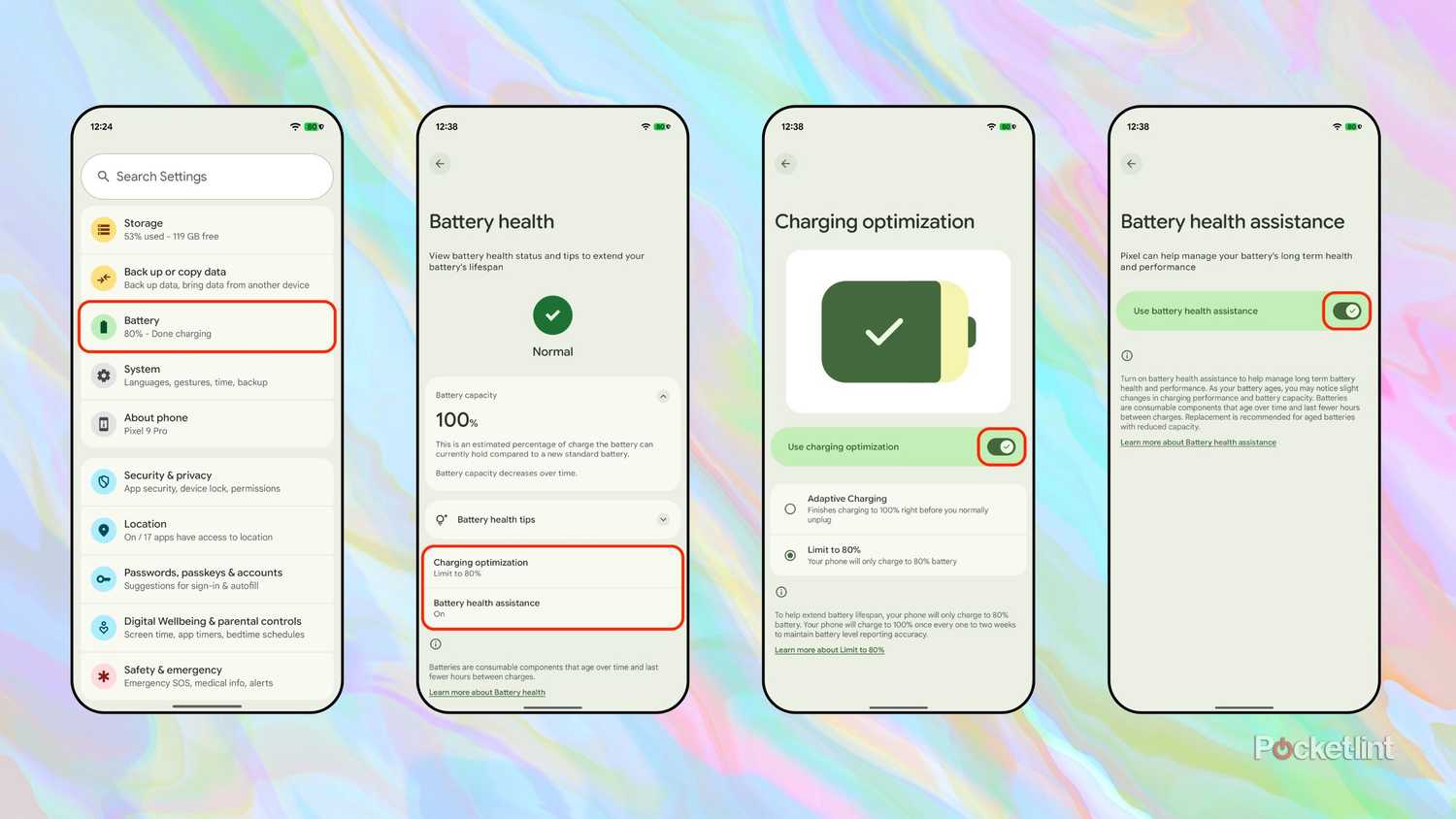
To preserve the health of your Pixel phone’s battery (and therefore ensure long-term longevity in the endurance department), consider toggling on both the charging optimization and battery health assistance settings. Charging optimization allows you to set a hard 80% capacity limit, which prevents the battery from experiencing chemical strain. Battery health assistance is an under-the-hood approach that, when enabled, grants the system the ability to manage battery health without the need for user intervention.
To adjust these battery health-related settings, navigate to Settings > Battery > Battery health, and then tap on either the Charging optimization or the Battery health assistance sub menus.
3
Zap active apps that aren’t essential
Not all apps need to run in the background

Within Android’s quick settings menu, a handy active tasks button can be found near the bottom left-hand corner of the screen. When tapped on, this button expands into a menu, revealing all the apps on your phone that are actively running in the background. While some apps benefit from background activity access, it can also negatively impact battery life. For any rogue apps that you see within this menu, I’d suggest tapping their corresponding Stop buttons within this menu.
For more granular control over the apps running in the background on your Pixel, follow these steps:
- Launch the Settings app.
- Navigate to Apps & Notifications > Advanced > Special app access > Battery optimization.
- From here, you can choose to include or exclude specific apps from running in the background. If an app is set to Don’t optimize, it’ll be able to engage in battery-draining activities even while your phone is in sleep mode.
2
Take full advantage of battery-saving modes
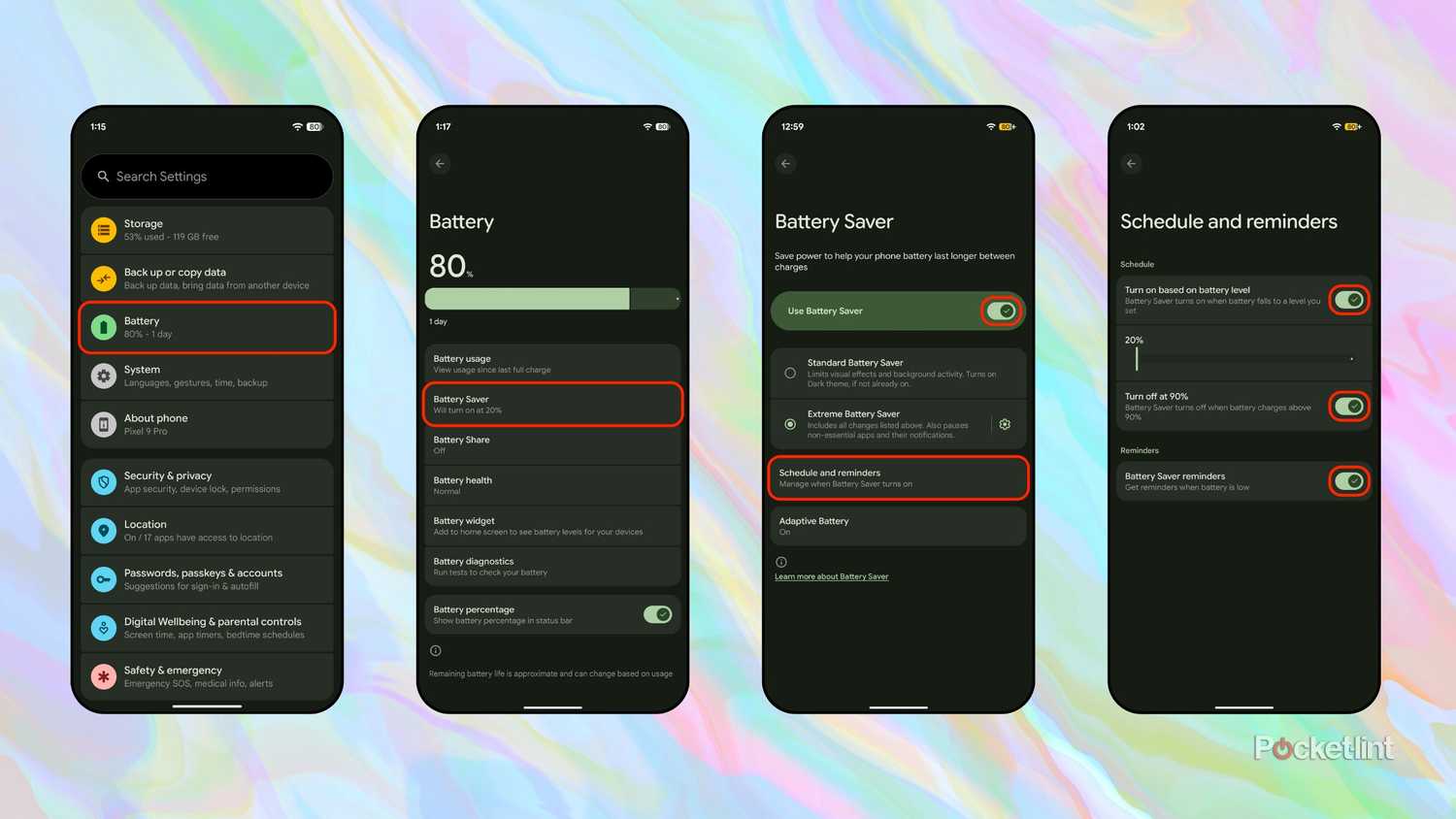
Every time I set up a new Android phone, I always make the conscious decision to schedule the operating system’s battery-saving mode to toggle itself on or off automatically. This way, I don’t have to worry about forgetting to enable it manually when my device is on its last legs. On Pixel phones, a basic Battery Saver is available that limits background activities and visual effects, while a more comprehensive Extreme Battery Saver goes a step further by pausing non-essential apps and their notifications. Both modes also switch the device theme to dark mode, which can help reduce the rate of display-related power consumption.
To adjust battery-saving settings on a Pixel phone, follow these steps:
- Navigate to Settings > Battery > Battery Saver.
- Tap or click on Schedule and reminders.
- From here, you can adjust the threshold for triggering battery-saver mode, with options ranging from twenty percent to seventy-five percent.
1
Reign in display power consumption
Screens are notoriously power-hungry

As mentioned, I’m the kind of person that likes to set my phone to run on all cylinders at all times. I love turning on the always-on display feature, I always enable smooth refresh rate modes, and I often blast screen brightness to its maximum level (particularly during the summer, when outdoor visibility becomes trickier).
However, nothing in life comes without sacrifice, and in my case, my habits result in reduced battery life across the board. Whenever I’m in a situation where I need to preserve power for later in the day, I dial back on power-hungry display settings — but only temporarily. I also tend to lower the screen timeout rate to one minute or less, as well as toggle off 5G, Bluetooth, NFC, and other antennas unless expressly needed at the moment. Screen-related options can all be found under Settings > Display & touch, while radio antennas can be controlled via Settings > Network & internet and Settings > Connected devices.
Trending Products

ANTEC NX200M RGB, Large Mesh Front ...

HP 330 Wireless Keyboard and Mouse ...

NZXT H9 Flow Dual-Chamber ATX Mid-T...
KEDIERS ATX PC Case,6 PWM ARGB Foll...

LG FHD 32-Inch Computer Monitor 32M...

SAMSUNG 27″ CF39 Collection F...

Dell SE2422HX Monitor – 24 in...

Aircove Go | Portable Wi-Fi 6 VPN R...

Motorola MG7550 – Modem with ...